

Submit an Inspection Report
- 11 Nov 2021
- 1 Minute to read
- Contributors

- Print
- DarkLight
Submit an Inspection Report
- Updated on 11 Nov 2021
- 1 Minute to read
- Contributors
- Print
- DarkLight
Article summary
Did you find this summary helpful?
Thank you for your feedback!
How to Submit a Form
1. Select Review from your home page (Figure 1).
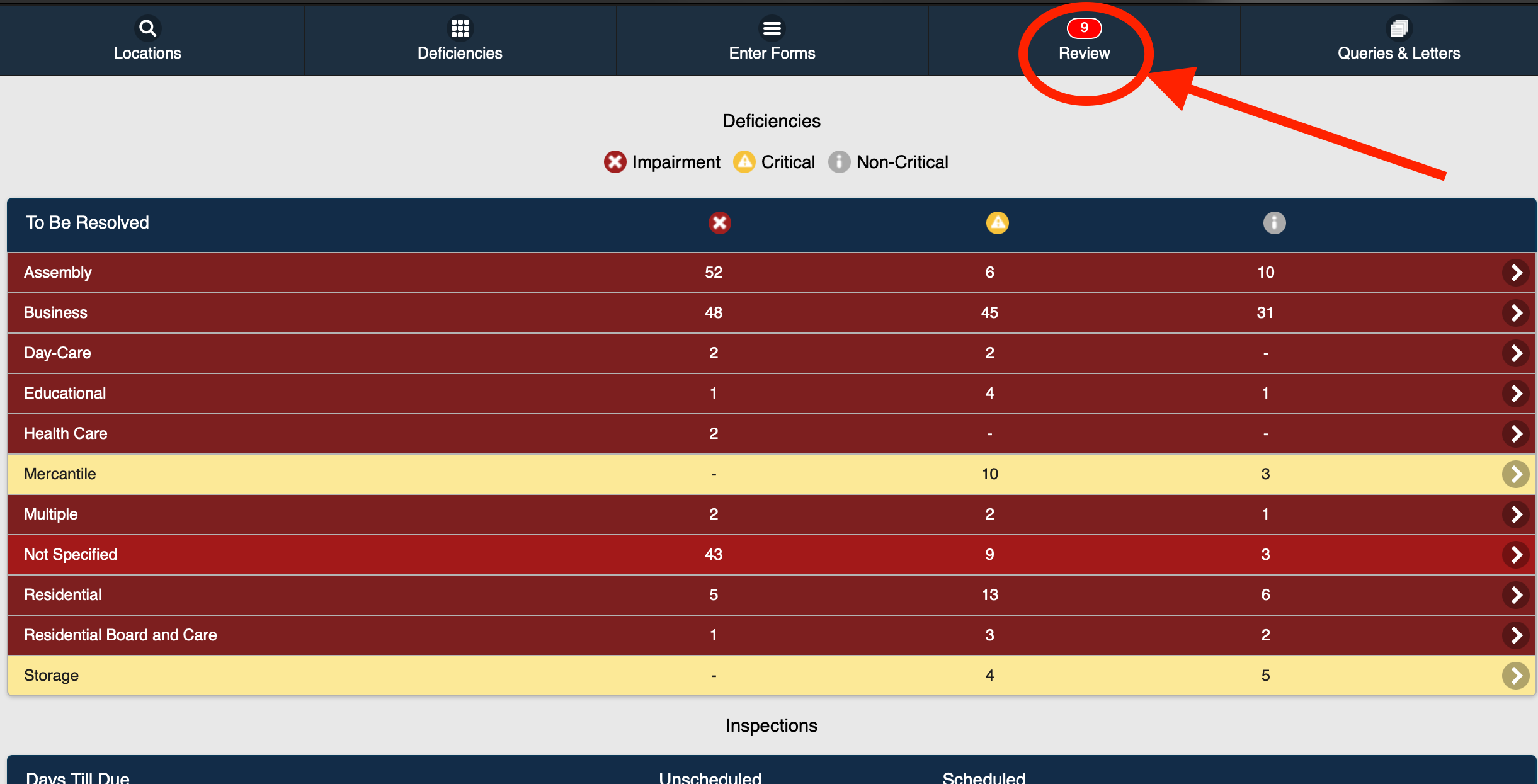 Figure 12. The Submit Inspections page is displayed (Figure 2).
.png) Figure 2
Figure 2
3. Select the inspection form or forms to be processed (Figure 3).
Note: You can also select the All checkbox to automatically select all available completed forms for processing (Figure 3).
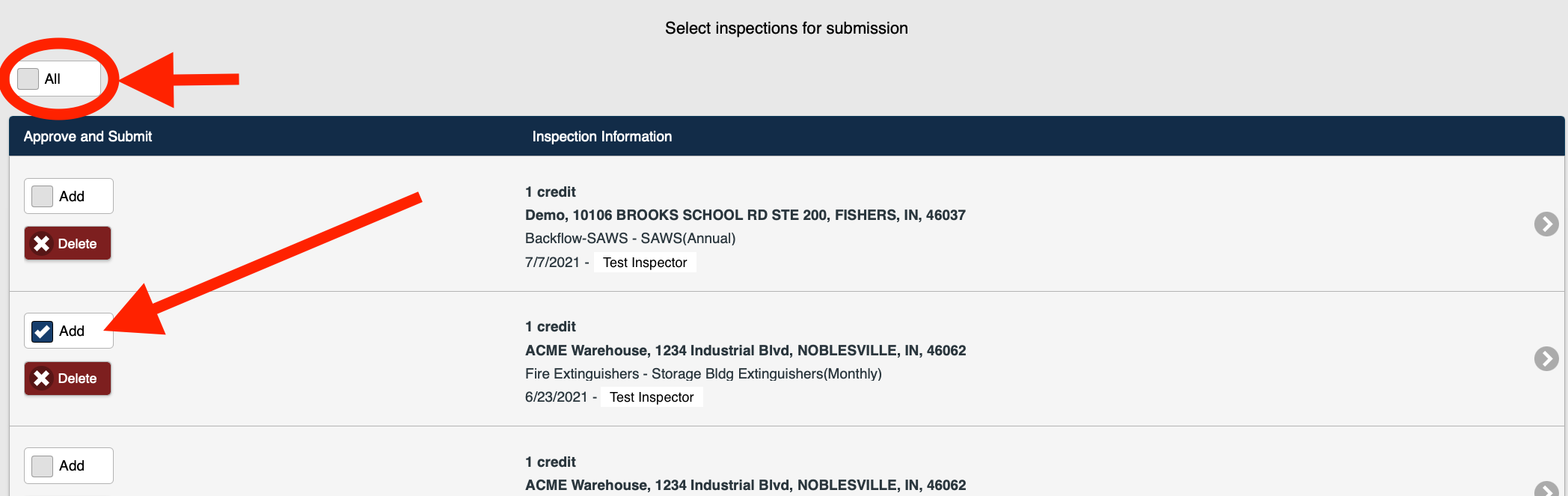 Figure 3
4. Select the I agree checkbox (Figure 4)
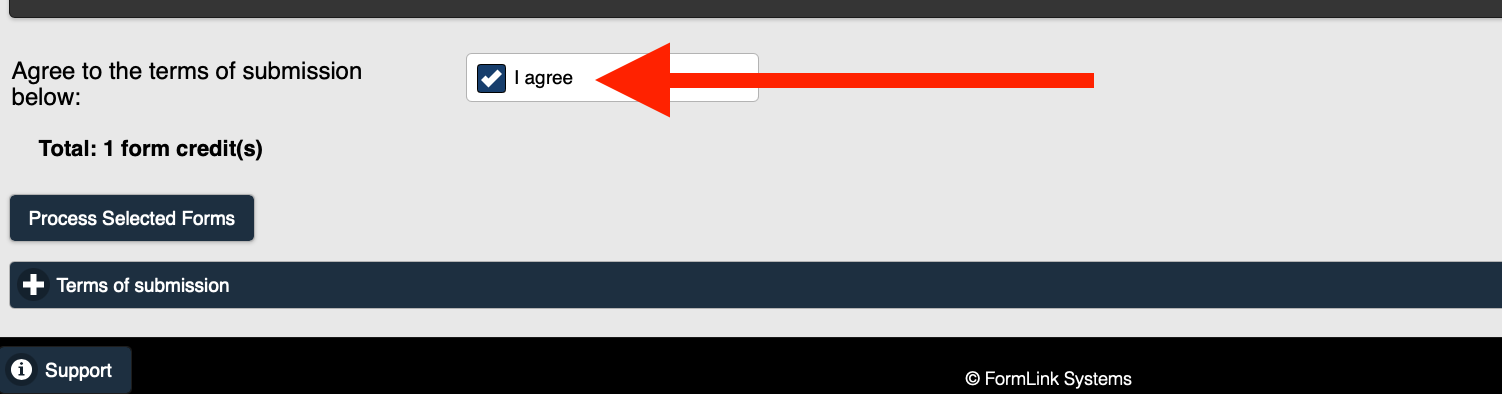 Figure 4
5. Select Process Selected Forms (Figure 5).
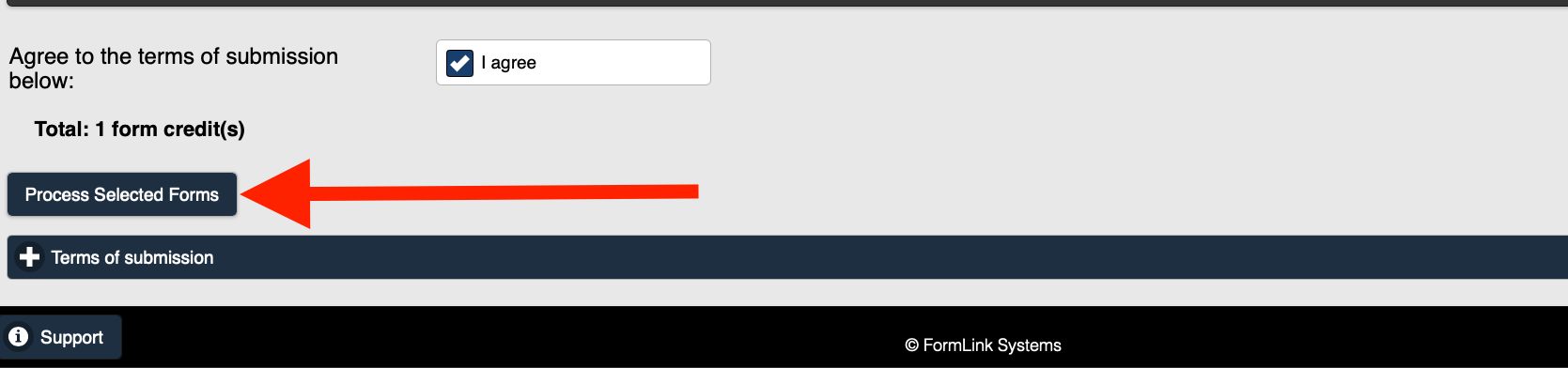 Figure 5
6. The Payment Processed page is displayed (Figure 6).
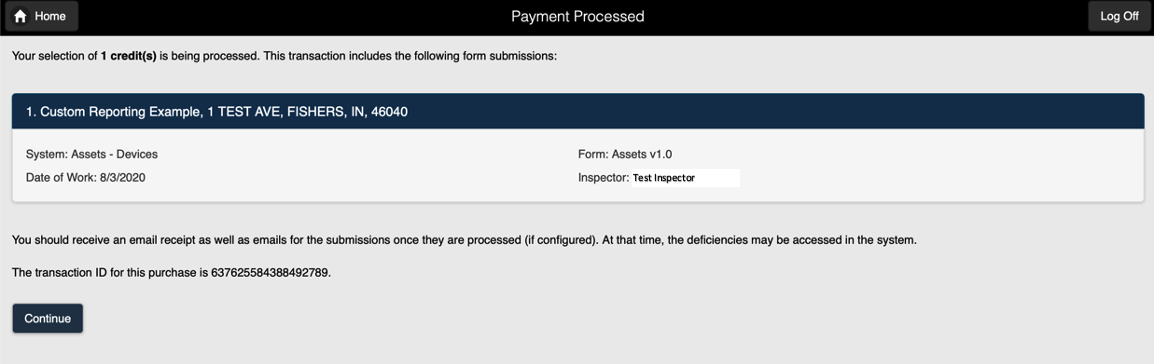 Figure 6
7. Select Continue to return to the home page.
Note: The forms that you processed are removed from the Review count on your home page (Figure 7).
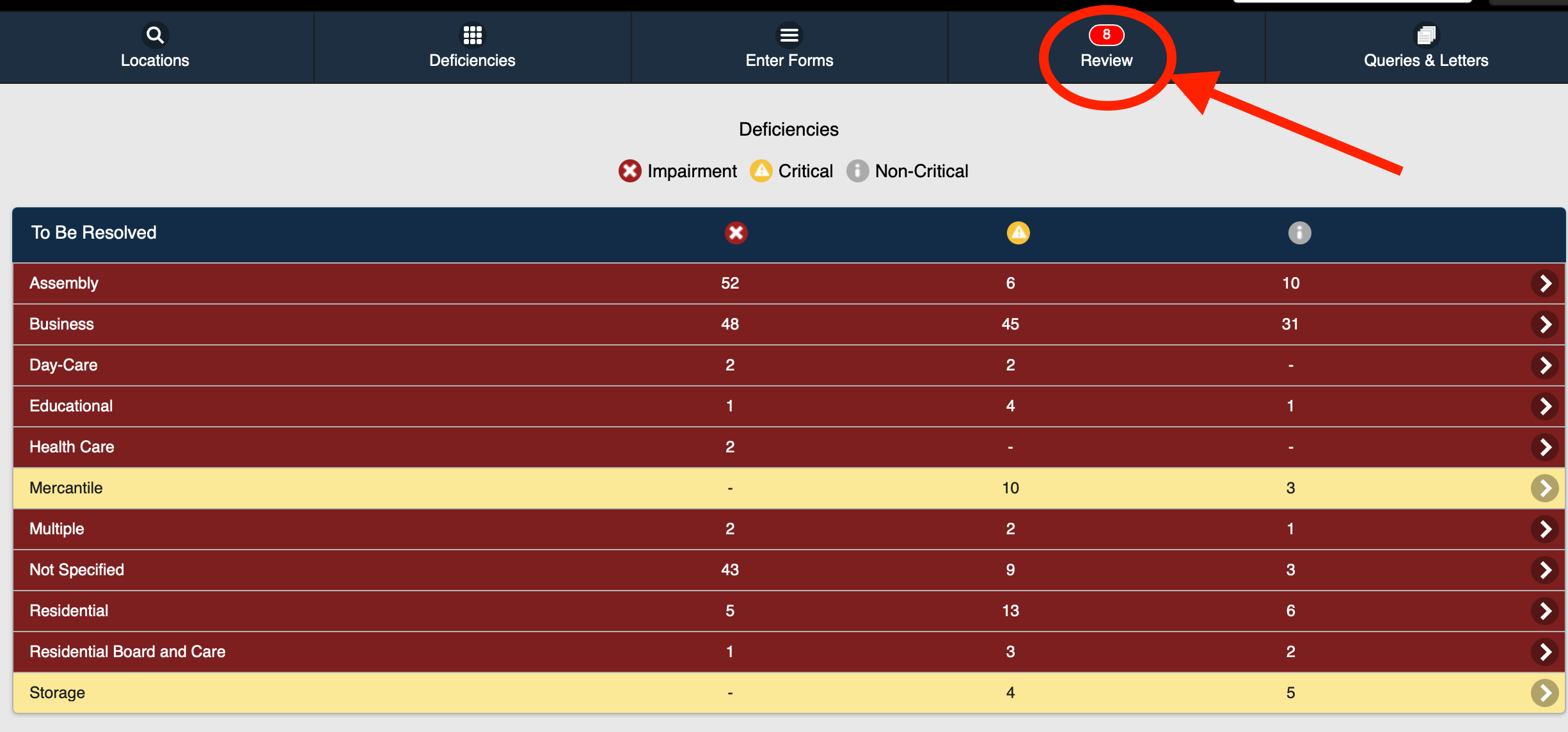 Figure 7
8. The processed report(s) can now be accessed from the report History page.
Note: Depending on the size of the report, it may take a few minutes to process, after which the report will be available in the History.
Was this article helpful?