

FormLink Systems Owner's Portal
- 07 Jul 2022
- 1 Minute to read
- Contributors

- Print
- DarkLight
FormLink Systems Owner's Portal
- Updated on 07 Jul 2022
- 1 Minute to read
- Contributors
- Print
- DarkLight
Article summary
Did you find this summary helpful?
Thank you for your feedback!
FormLink Systems Owner's Portal
You can personally register your customers in the FormLink owner's portal, or you can provide your customers with detailed instructions on how to self-register in the portal. Our recommended best practice is to register your customers and then send them the simple instructions on how to login and work in the portal.
Register Your Customer
Complete the following steps to register your customers and their individual properties.
1. Access the customer portal using the provided link specific to your FormLink account.
2. You will be provided with a unique FormLink ID.
3. Select Register.
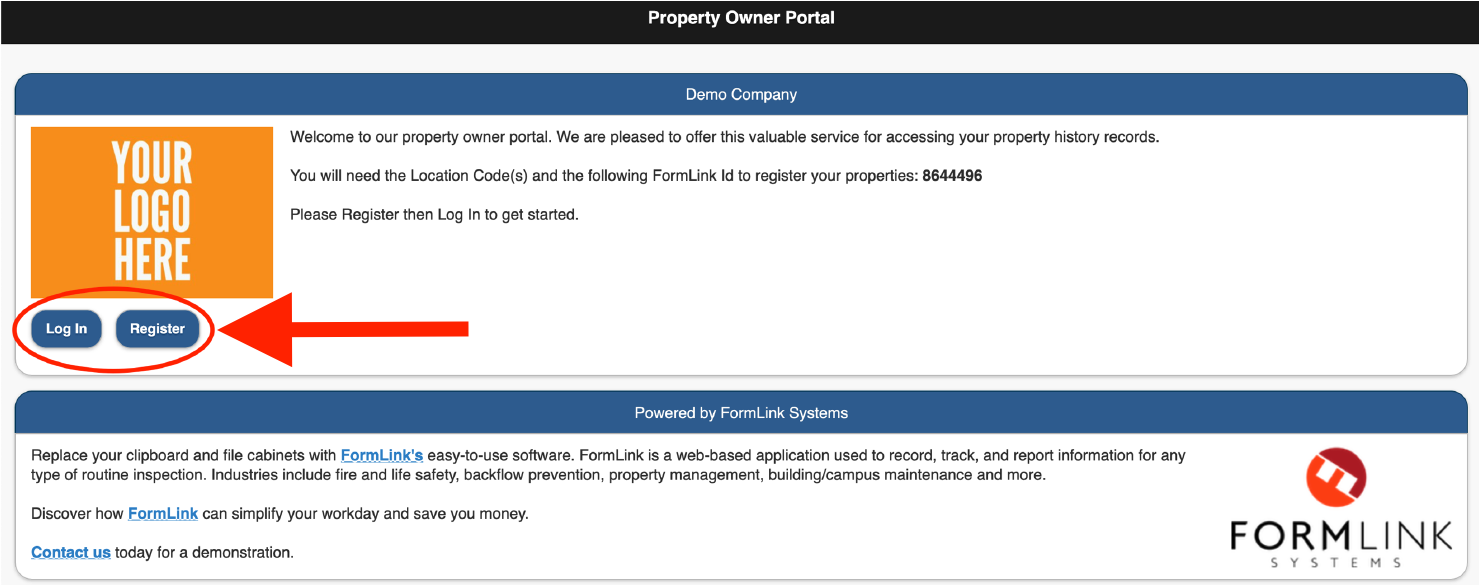 Login/Register
4. Input your customer's name in the Full Name field.
5. Input the customer's Email address.
6. Create the customer's unique Username and Password
7. Confirm the customer's Password.
8. Select Register.
.png) Owner Registration
Owner Registration
9. Accept the FormLink Systems EULA.
.png) FormLink Systems EULA
FormLink Systems EULA
10. Enter your FormLink ID and Location Code for the customer's property (use FormLink report).
11. Select Add Property.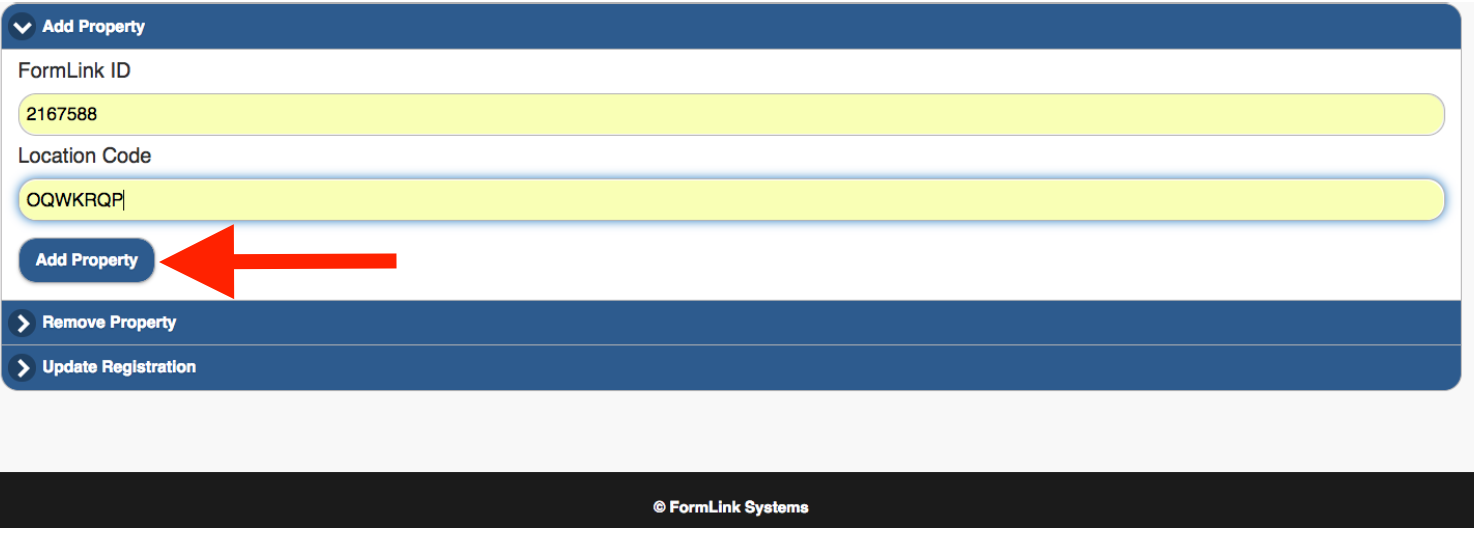 Add Property12. Your customer's property has now been added to the system and the customer can now access the portal and view the activity of any of their properties.
Add Property12. Your customer's property has now been added to the system and the customer can now access the portal and view the activity of any of their properties.Features Your Customers can Manage
Once registered, your customers can easily manage the following account details from the customer portal:
- Add a Property
- Remove a Property
- Update Registration Information
Add a Property
1. Select Add Property..png)
2. Enter the FormLink ID and Location Code for the new property.
 Add Property
3. Select Add Property to add the property to the system
Remove a Property
1. Select Remove Property.
2. Select a property to remove from the drop-down selection list.
 Remove Property
 3. Select Remove Property to remove the property from the system.
Update Registration
1. Select Update Registration.
2. Complete the two required fields to change the customer's Email address.
3. Select Update Registration to save the new Email address.
Customer Portal View
Using the customer portal, your customers can view and save any of the available PDF reports for their properties.
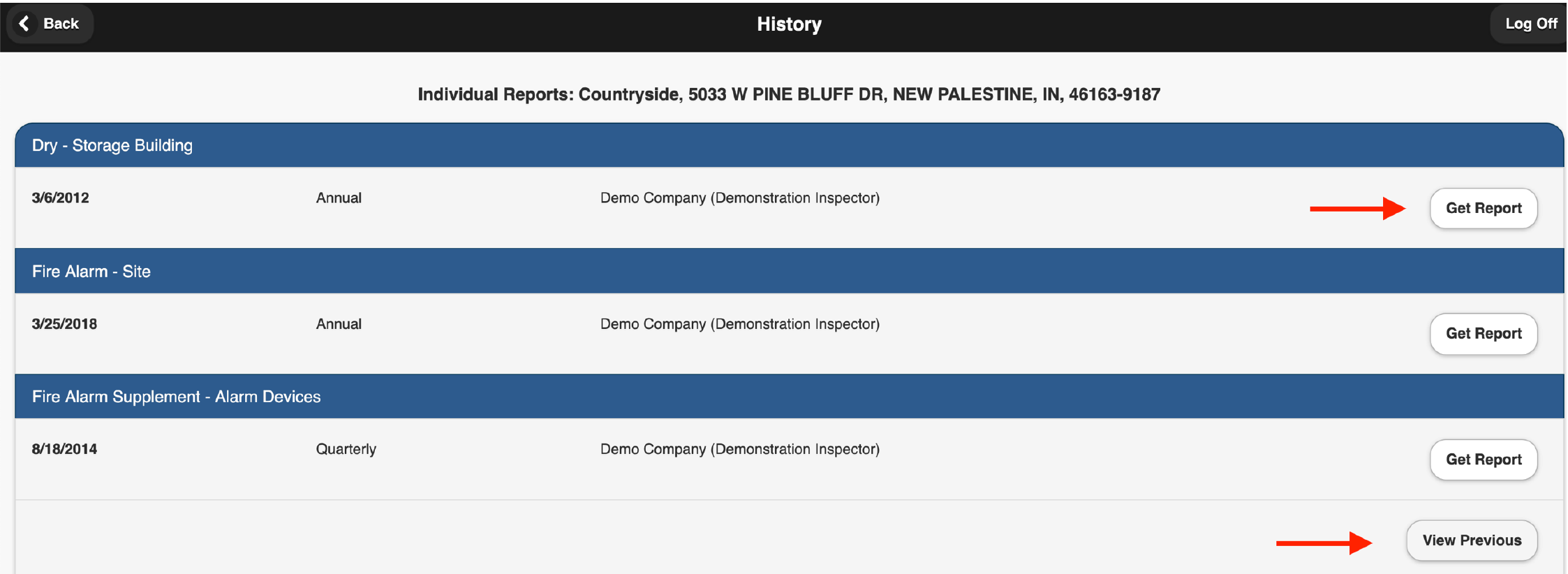 Customer Portal View
Using the portal, your customers can:
- View PDF reports cataloged by report type and date
- Select Get Report to view their most recent completed reports
- Select View Previous to view all history pertaining to the report type
Was this article helpful?